
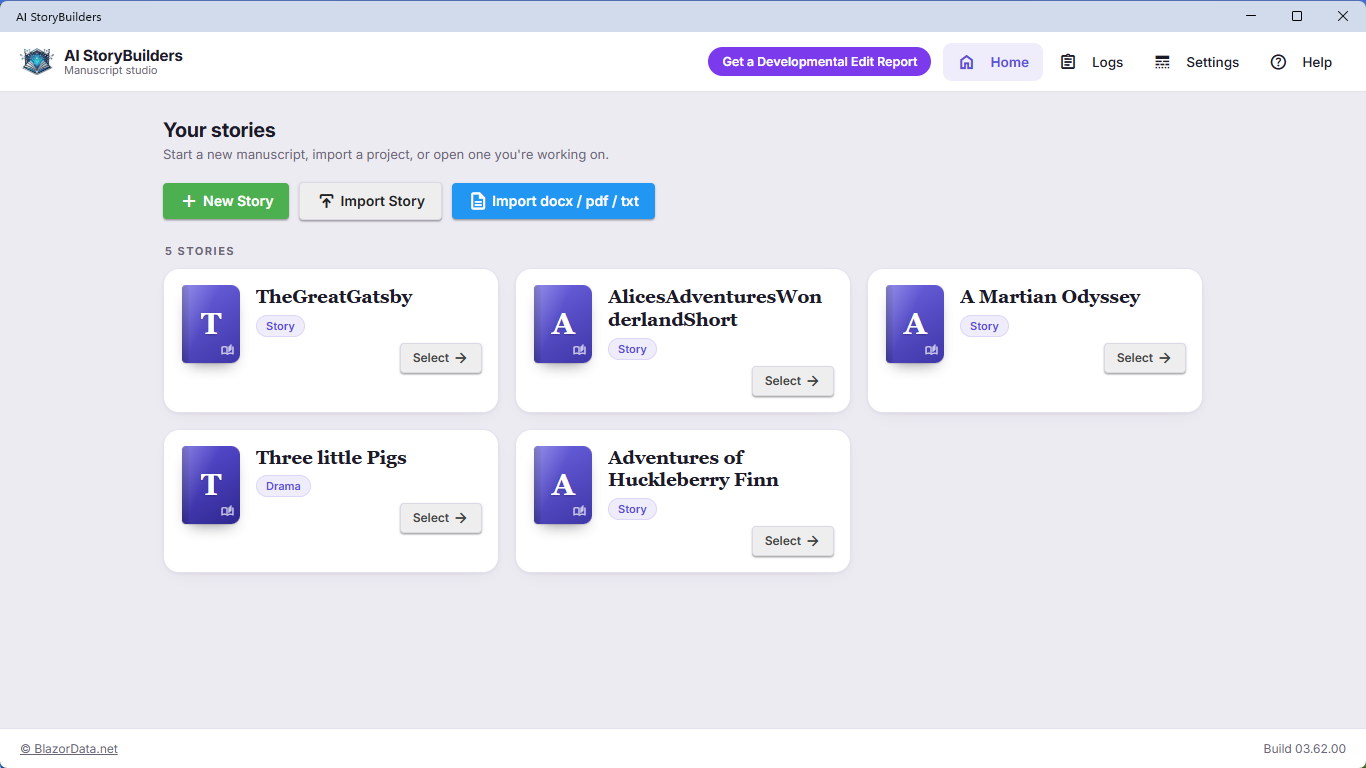
AI StoryBuilders 4.0 is now available for Windows in the Microsoft Store. If you already have AI StoryBuilders installed, the Store updates it for you. It's free, as always.
This is the same 4.0 that runs at online.aistorybuilders.com, now as a desktop app that keeps your stories on your own computer. This post covers everything that's new since version 3.6.
Your stories come with you
4.0 opens the stories in your Documents\AIStoryBuilders folder as they are. Nothing is converted and the file format hasn't changed, so your chapters, characters, locations and timelines are all there the first time you open the app.
A redesigned workspace
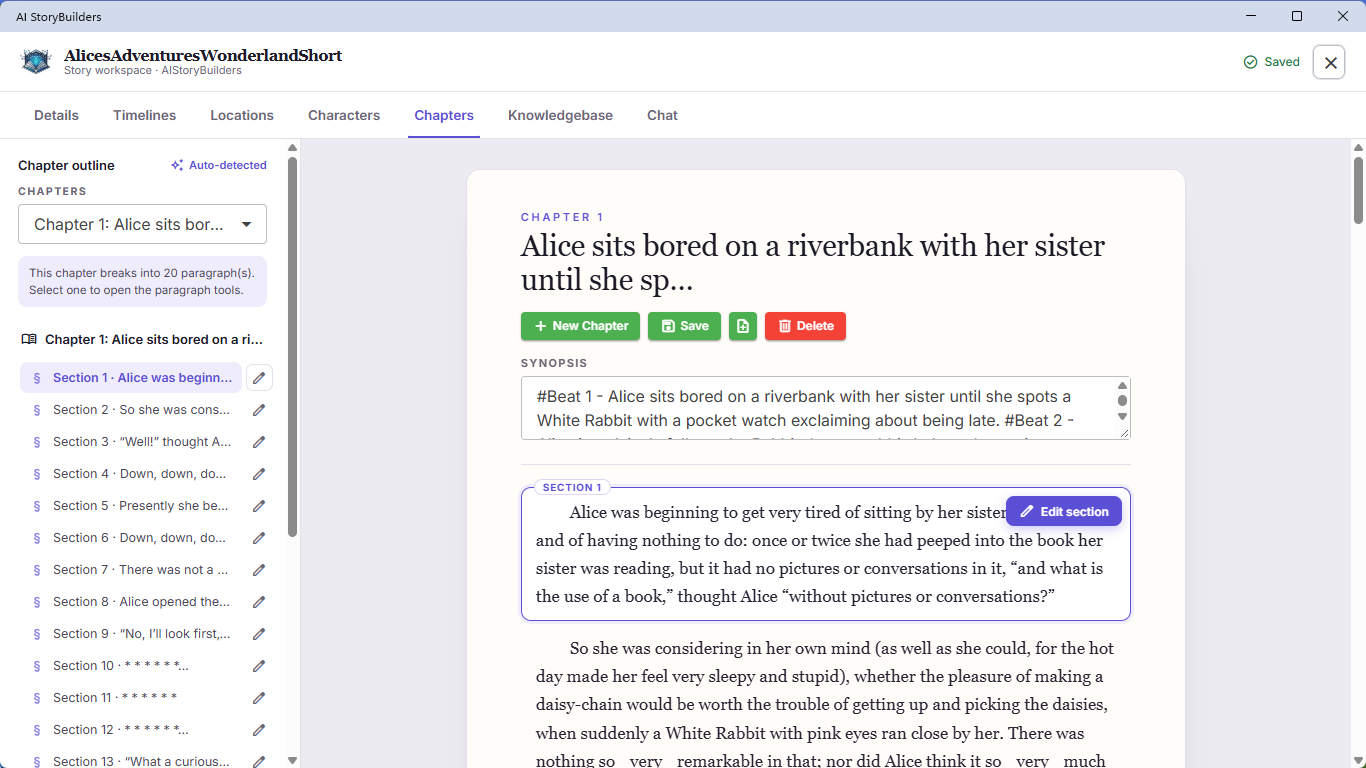
Every screen is new. A story opens in one workspace with tabs for Details, Timelines, Locations, Characters, Chapters, Knowledgebase and Chat.
On the Chapters tab, the chapter outline is on the left and the chapter reads like a manuscript on the right. Click Edit section on any section to open the paragraph editor, where you set its characters, location and timeline, or ask the AI to write it.
A Knowledgebase for every story
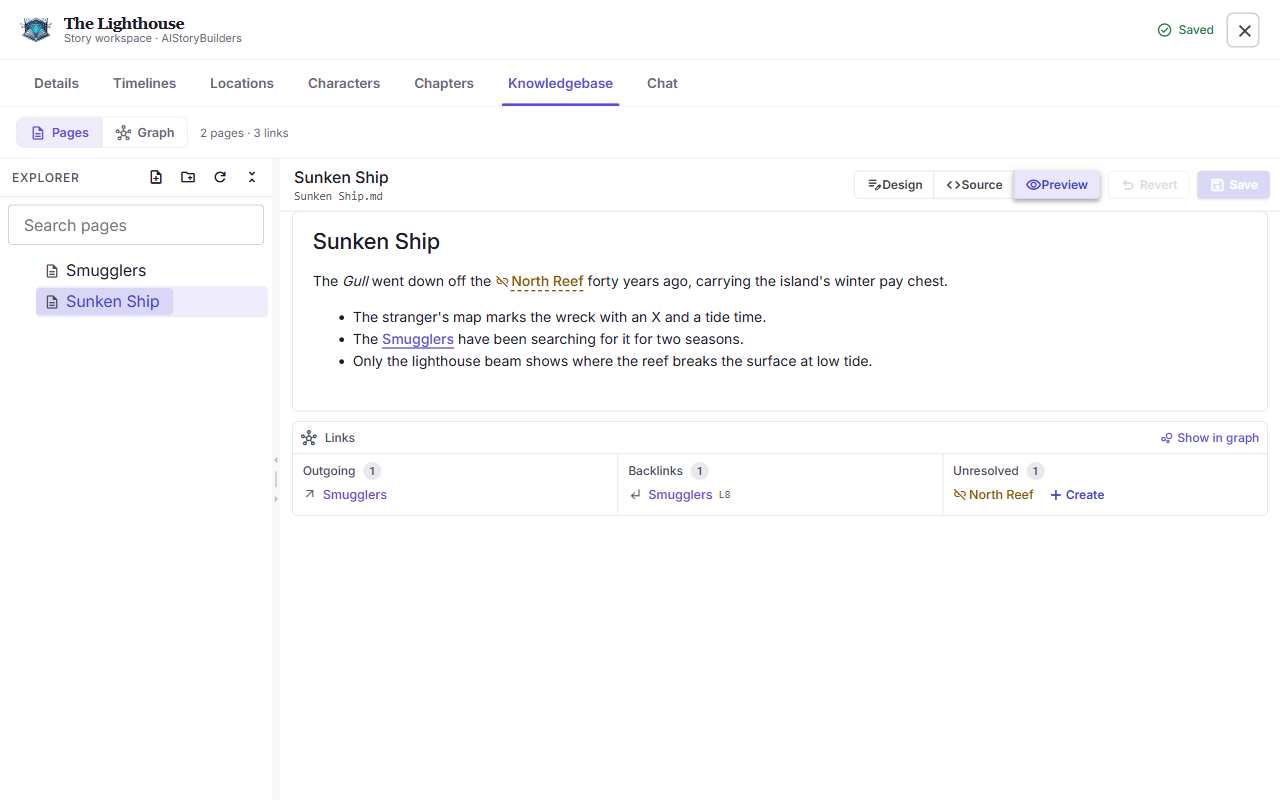
Each story now has its own Knowledgebase: Markdown pages for the notes that don't fit anywhere else, such as your world's history, the rules of your magic system, research or a glossary.
- Link pages by typing a page name in double brackets, such as
[[Sunken Ship]]. Each page lists its outgoing links, its backlinks and any pages you haven't written yet. - Organize pages into folders. When you rename or move a page, the links to it are updated.
- See the whole picture with Graph, a map of your pages and the links between them.
The Knowledgebase post covers it in detail.
Let the AI read your notes
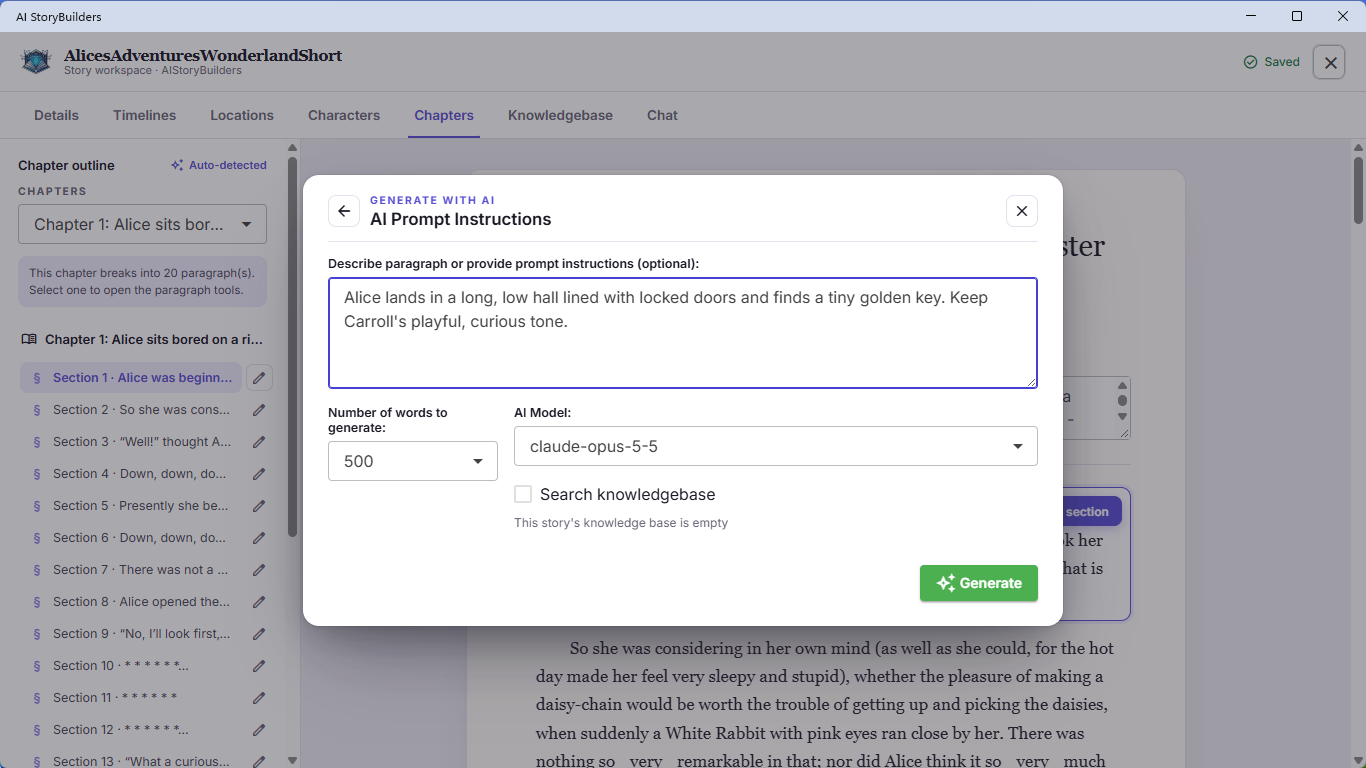
When you generate a section, check Search knowledgebase in the AI prompt. The AI searches your pages for anything relevant before it writes, so a scene can stay true to the history of a city or the cost of a spell without you pasting your notes into the prompt.
In Story Chat, check Include Knowledgebase to ask questions your notes can answer, or to have the chat add to and reorganize your pages.
Write in your own voice
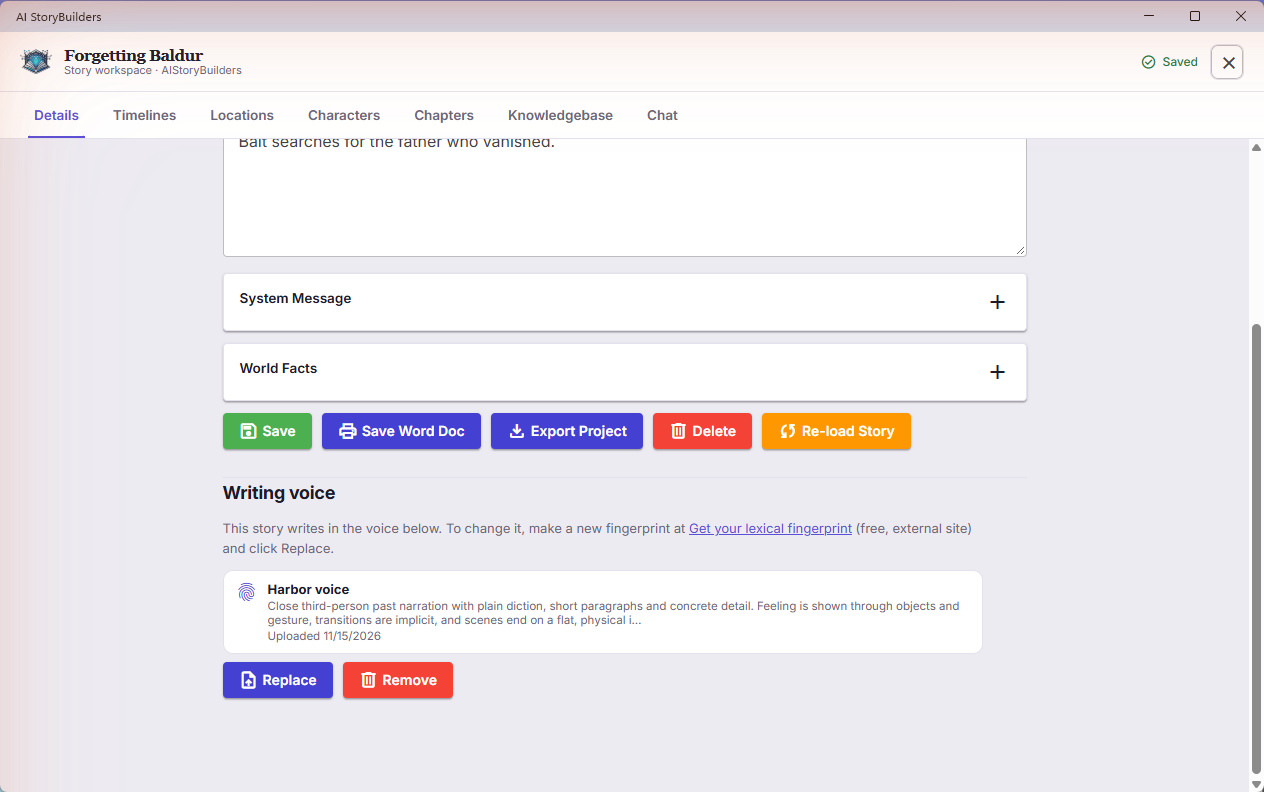
You can now give a story your writing voice. A lexical fingerprint is a short profile of how you write: sentence rhythm, word choice, punctuation, point of view, and the habits you avoid. When a story has one, the AI writes new sections, and Story Chat writes its changes, in that voice.
- On the Details tab, scroll down to Writing voice and click Get your lexical fingerprint. A free, external site opens in your browser.
- Upload a sample of your own prose (PDF, Word or Markdown, under 5,000 words) and download the
.jsonfile it gives you. - Back in AI StoryBuilders, click Upload fingerprint and choose that file.
From then on, the AI prompt shows Writing in the voice of … and the chat header shows Voice: …. The Style setting still sets the genre. Click Remove to stop using a fingerprint; text the AI has already written doesn't change.
Story Chat asks before it changes anything
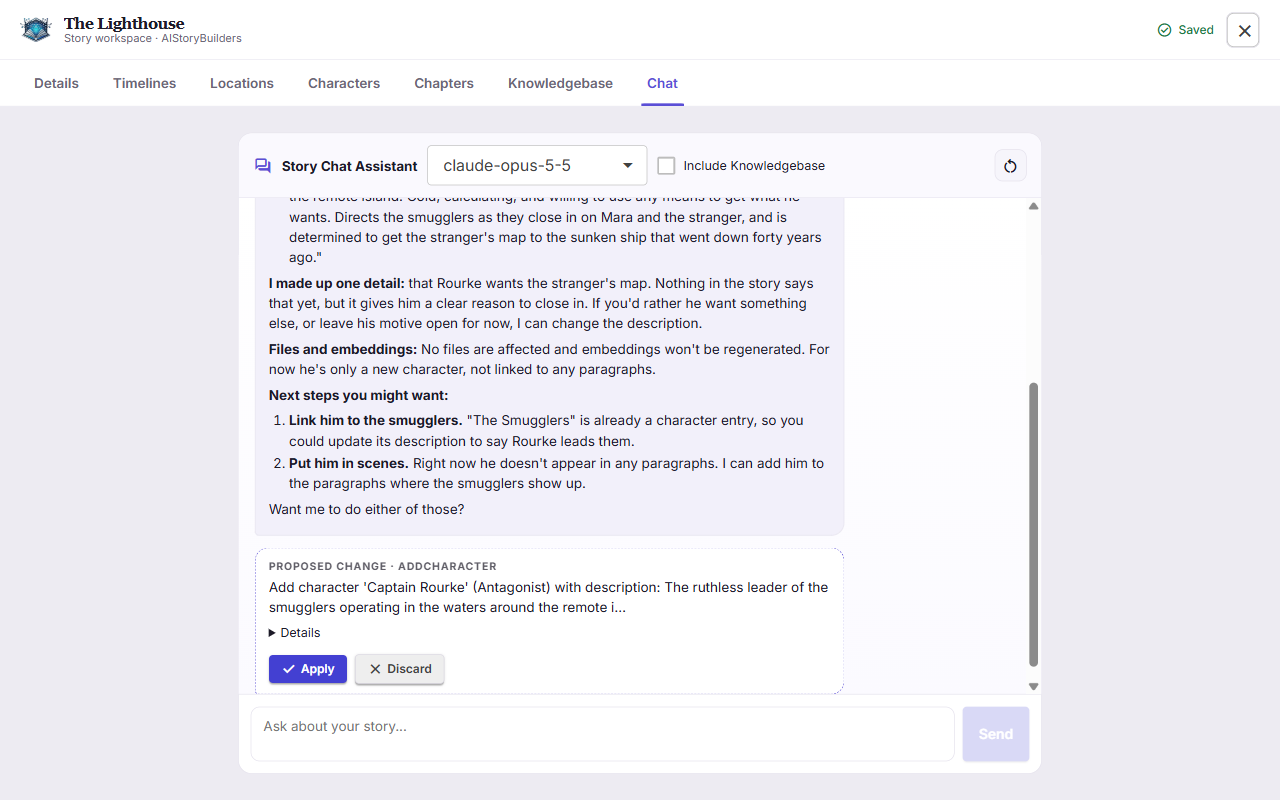
Ask Story Chat for a change, such as Add a new character named Captain Rourke, and it no longer edits the story on its own. It shows a Proposed change card instead. Click Details to see exactly what will change, then click Apply or Discard.
The same goes for characters, locations, timelines, chapters and Knowledgebase pages and folders: nothing changes until you click Apply. You can also pick a different model for each chat without changing your default.
Use the model you want, including local models
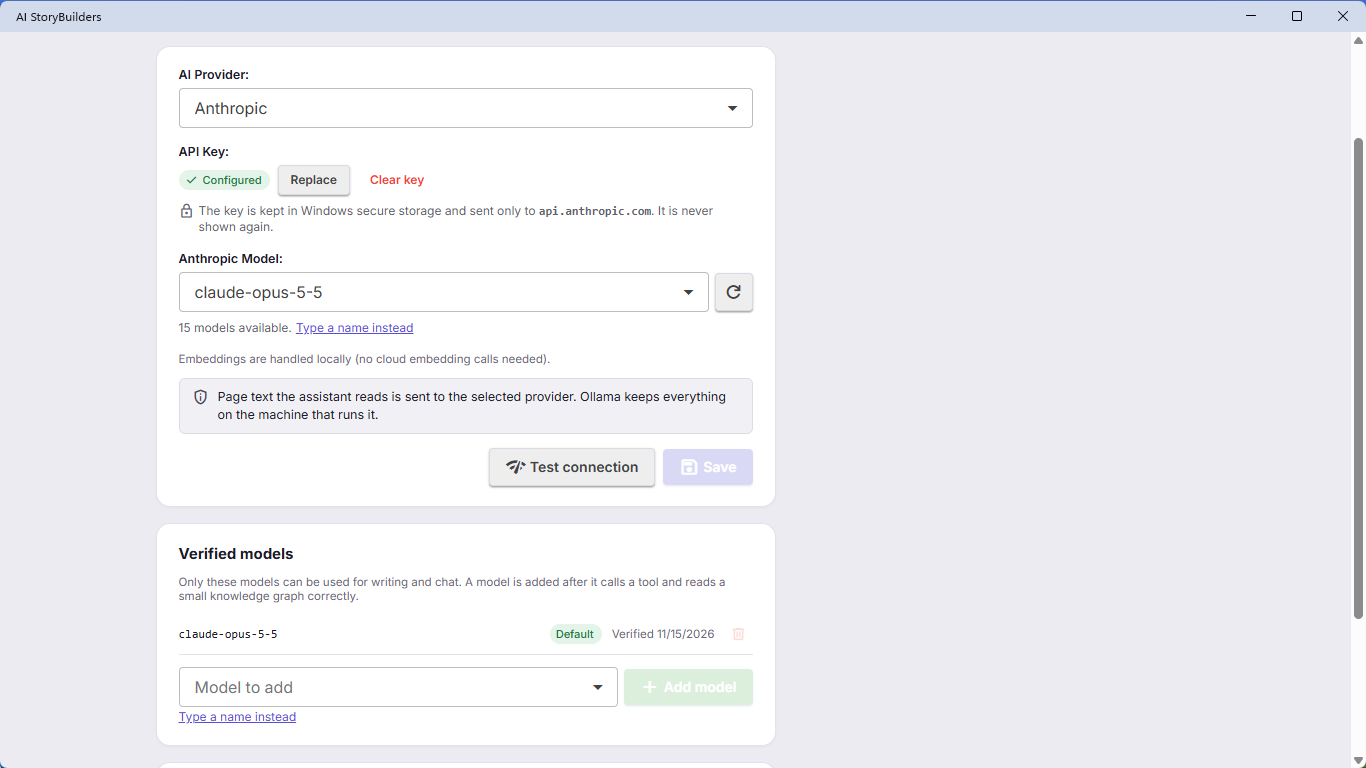
- Ollama is new. Along with OpenAI, Azure OpenAI, Anthropic and Google AI, you can now run models with Ollama on your own computer or network. It needs no API key, and your story text never leaves the computer running Ollama.
- Every model is checked first. When you save a model, the app tests it: the model has to call a tool and read a small knowledge graph correctly. Only models that pass appear in the model lists, so you won't find out halfway through a chapter that a model can't do the job.
- Your API key is better protected. 4.0 keeps the key in Windows secure storage, sends it only to your provider, and never shows it again.
Help is built in
Click Help in the top menu for the complete user guide, right inside the app. It walks through every screen, with a troubleshooting section and answers to common questions.
At the top of the app, there's also a purple Get a Developmental Edit Report button. It opens AI StoryBuilders Pro, where you can upload a manuscript and get a developmental editor's review: continuity errors, plot holes, character inconsistencies and pacing.
Good to know
- Enter your AI settings again the first time. 4.0 doesn't read the old version's settings. Open Settings, pick your provider, paste your key and click Save. The app tests your model before you start writing.
- Some models won't pass the check. Small or older models that can't call tools are turned away. Pick a current model from your provider.
- The fine-tuning tools are gone. The Utility page for fine-tuned models and training data has been removed.
- Your notes and voice travel with your story. Export Project saves the story, its Knowledgebase and its writing voice together in one
.stybldfile. - Your writing stays private. Searching your story uses embeddings made on your own computer. Text is sent only to the AI provider you choose, and only when you ask the AI to do something.
Learn more
- Get AI StoryBuilders in the Microsoft Store
- Try it in your browser: no install needed
- Read the user guide
Open AI StoryBuilders, choose a story, and look around. Everything you wrote is still there.