
AI StoryBuilders 4.0 is now deployed at online.aistorybuilders.com. There's nothing to install: open the site in your browser and you're on the new version.
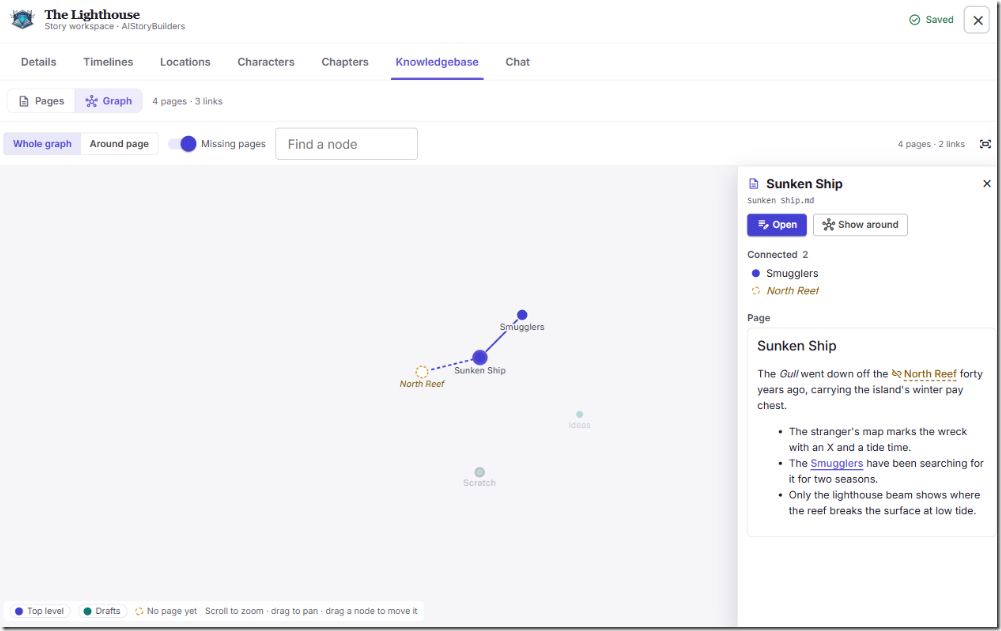
The big new feature is the Knowledgebase.
What is the Knowledgebase?
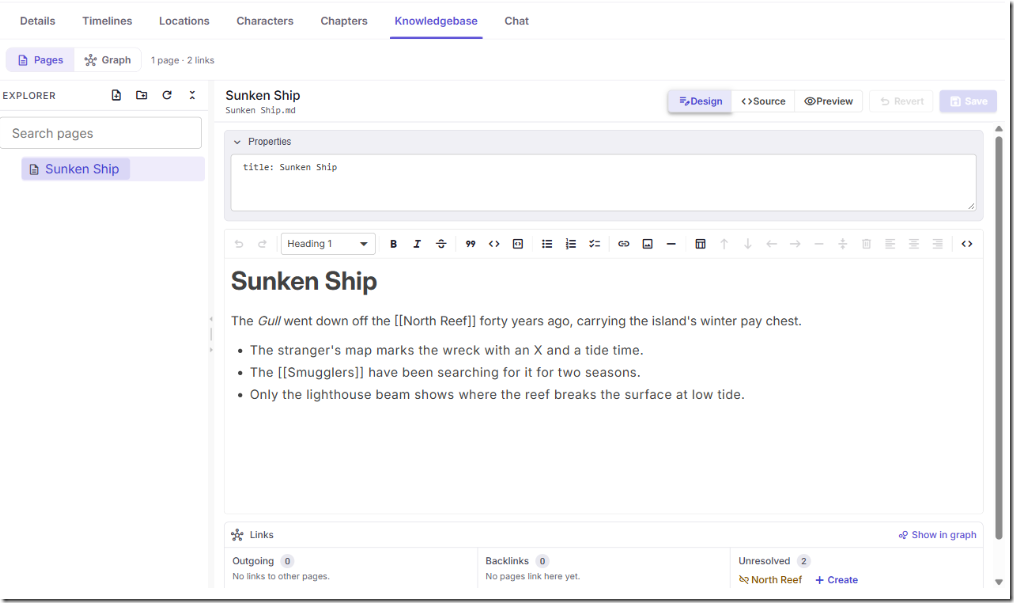
Every story now has its own knowledgebase: a set of Markdown pages for the notes that don't fit anywhere else. It might be your world's history, the rules of your magic system, research notes, a glossary, or the backstory you know but your readers never see.
These pages sit alongside your characters, locations and timelines. They don't replace them, and you decide when the AI uses them.
Write pages that link together
Open a story and click the Knowledgebase tab. Then click Create first page and start writing.
- Three views. Write in Design (formatted), Source (plain Markdown) or Preview (read-only). Press Ctrl+S to save.
- Wiki-style links. Type a page name in double brackets, such as
[[Sunken Ship]], to link to it. A link to a page that doesn't exist yet shows as a broken link, and you can create that page in one click. - Links panel. Each page lists its outgoing links, its backlinks and any unresolved links.
- Folders. Organize pages into folders, drag them around, and search by name. When you rename or move a page, the app updates the links to it in your other pages.
See your world as a graph
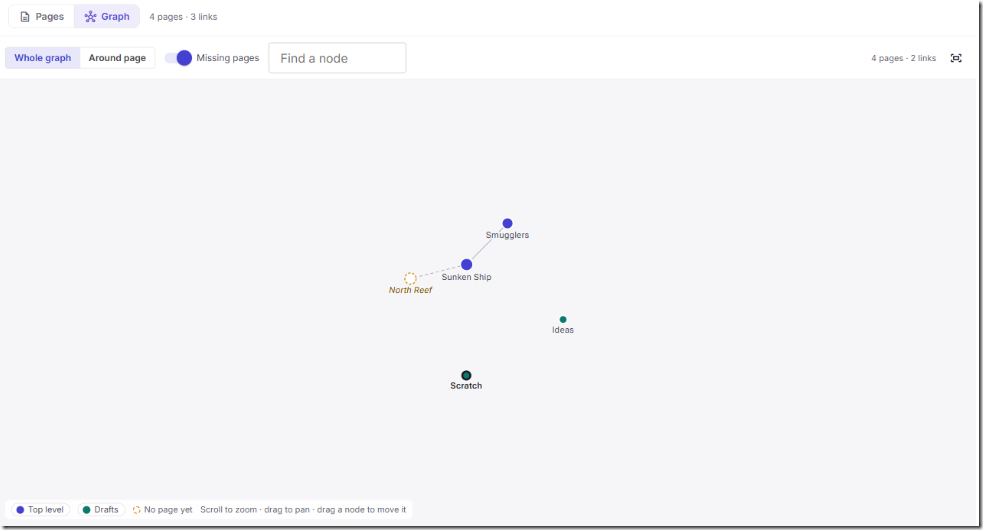
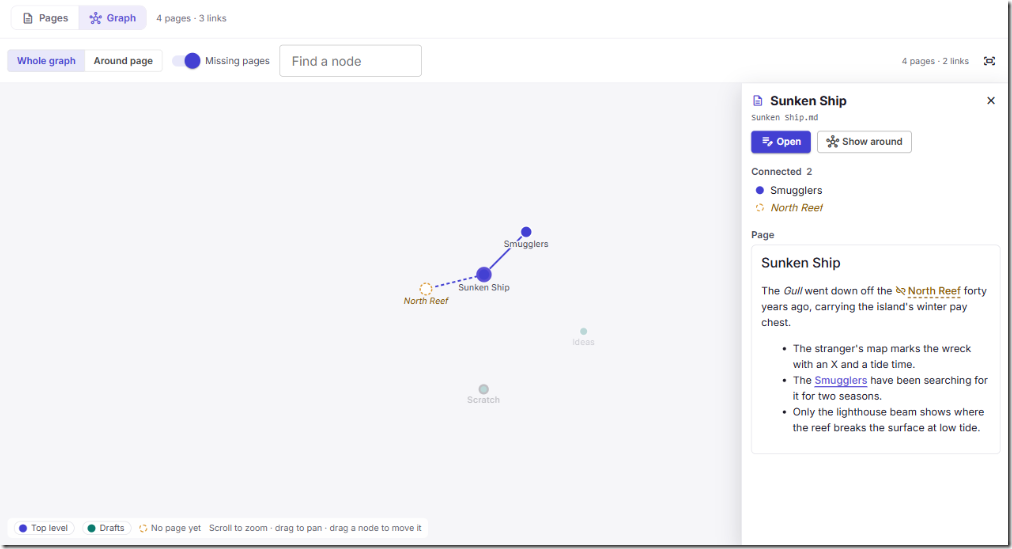
Click Graph to see your pages and the links between them as a map. You can view the whole graph or only the pages around the one you're working on. You can also find a page by name, hide or show folders, and see which linked pages you haven't written yet.
Let the AI use your notes
The Knowledgebase gets most useful when the AI can read it:
- When generating a section, check Search knowledgebase in the AI prompt. The AI then searches your pages for anything relevant before it writes. A section can stay true to the history of a city or the cost of a spell without you pasting those notes into the prompt.
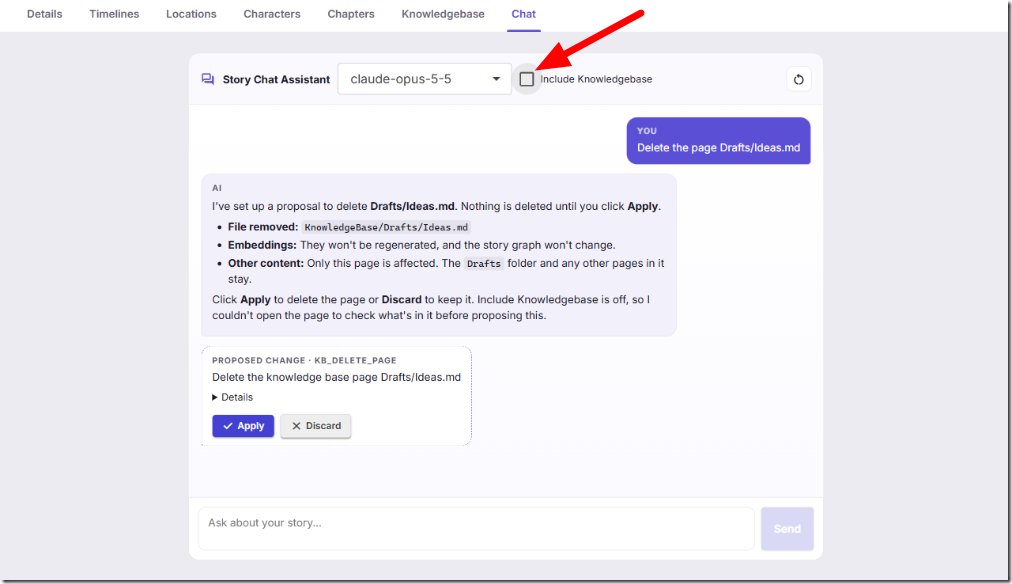
- In Story Chat, check Include Knowledgebase to ask questions your notes can answer. Links to pages in the reply open the page.
Ask the chat to update your notes
With Include Knowledgebase checked, Story Chat can also maintain your pages for you. Try something like:
Add to the Forge page that he forged the Necklace.
Create a page Places/Village.md about the fjord village.
The chat can create, rewrite and delete pages, and create, rename, move and delete folders. Nothing changes until you click Apply. Every edit is shown first as a proposal you can apply or discard. If you've edited the page yourself in the meantime, your version is kept and nothing is overwritten.
Also new: Get a Developmental Edit Report

At the top of the app, to the left of Home, there's a purple Get a Developmental Edit Report button. It opens AI StoryBuilders Pro in a new tab. There you can upload a manuscript and get the kind of review a developmental editor would give you: continuity errors, plot holes, character inconsistencies and pacing, each pointing to the exact passage. You can then have the AI apply the fixes you choose and export the revision.
Good to know
- Stories from the previous online version don't carry over. If you used the earlier version of the online app, the stories you saved there don't appear in 4.0. They're still kept in your browser, but 4.0 can't open them.
- Your knowledgebase travels with your story. Export Project saves the story and its knowledgebase together in one
.stybldfile. Use it for backups, or to move a story to another browser or computer. - Stories stay in your browser. The online version keeps stories in your browser's storage, which holds about 5 MB, so export a backup now and then.
- Deleting is permanent in the browser. The delete confirmation offers Export first, so take it if you're unsure.
- Your notes stay private. Searching your notes uses embeddings made on your own computer. Text is sent only to the AI provider you choose, and only when you ask the AI to do something.
Learn more
The full guide is built into the app. Click Help in the menu, or go straight to:
- Build a knowledge base: creating pages, links, folders and the graph
- Chat with your story: including how the chat edits your knowledgebase
- The complete help guide
Open online.aistorybuilders.com, choose a story, and click Knowledgebase to get started.