
Hey writers! We've got another big one for you. Hot on the heels of our 3.0 release, we are thrilled to roll out one of the most powerful additions to AIStoryBuilders yet — the brand-new Chat tab.
This isn't just another text box to throw prompts into. The Chat feature turns your AI into an actual co-writer that knows your story — every Character, every Location, every Timeline, every Chapter, and every paragraph Section you've written. You can finally stop copy-pasting context into ChatGPT and just… talk to your story.
Note: For best results, you will want to use Anthropic Claude Opus 4.7 or higher for your AI model.
A Co-Writer That Actually Reads Your Book
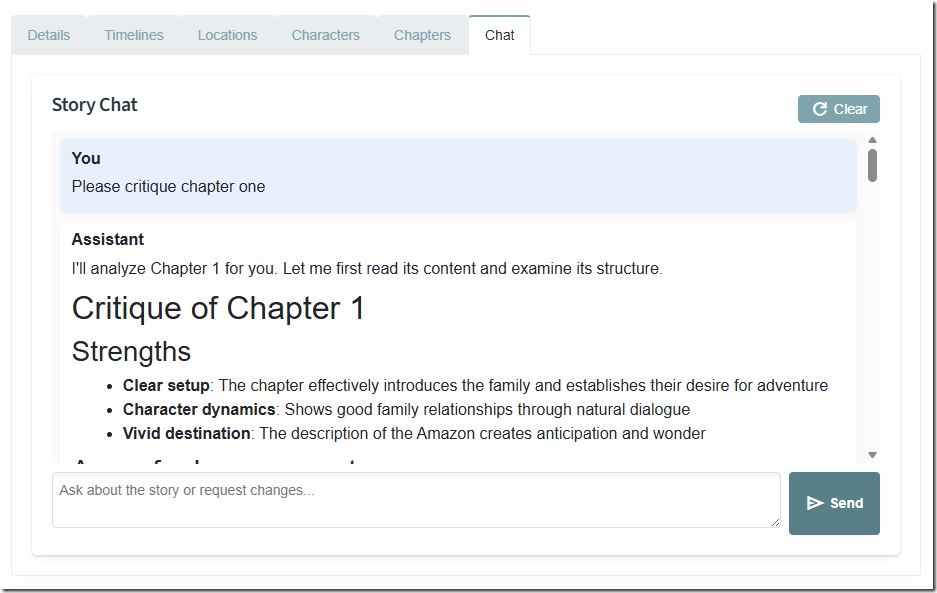
Here's the magic: the first time you open the Chat tab on a story, AIStoryBuilders quietly builds a knowledge graph of your entire story in the background. Your Details, Timelines, Locations, Characters, Chapters, and Sections all get wired together so the AI can actually understand how your world fits.
What does that mean in practice? It means you can ask things like:
- "Tell me about the main characters in this story."
- "Are there any orphaned characters that don't appear in any Section?"
- "Which Chapters take place at the Lighthouse Location?"
- "Summarize what happens to Daniel across the Timeline."
- "Find any Sections where Tom and Daniel appear together."
And the assistant will give you real answers grounded in your story — not generic AI hand-waving. No more re-pasting your character sheet into a prompt. No more reminding the AI for the fifteenth time that your protagonist's name is spelled "Daniyel," not "Daniel." It just knows.
Trust us on this one: once you've used a story-aware chat, going back to a plain LLM feels like writing with one hand tied behind your back.
Brainstorm, Suggest, and Plot Without Losing the Thread
The Chat tab isn't just for lookups — it's a creative collaborator that stays consistent with everything you've already written. Stuck on Chapter 6? Ask:
- "Suggest three plot twists for the next Chapter."
- "What would Tom most likely do after the events of Chapter 5?"
- "Give me ideas for a new Location that would fit this story."
- "Propose a backstory for Daniel that is consistent with what is already written."
Because the assistant has the full picture, its ideas don't contradict your existing canon. No more suggestions that involve a character who died two chapters ago, or a Location you never established. Wayyyyy fewer plot holes, way more momentum.
It Can Actually Edit Your Story
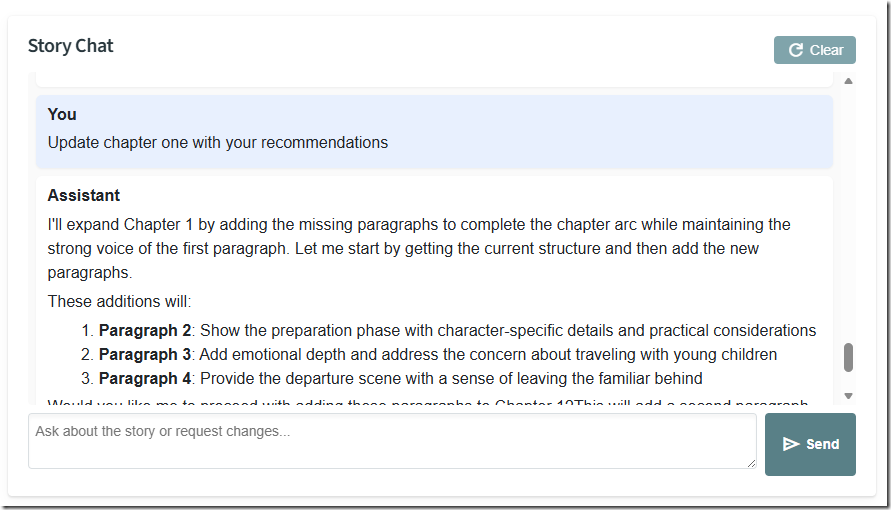
This is the part that genuinely changes the game. The Chat tab doesn't just talk about your story — it can make changes to it. You can ask the AI to add, rename, update, or remove Characters, Locations, Timelines, Chapters, and paragraph Sections directly from the chat:
- "Add a new Character named Eleanor, a retired schoolteacher who appears in Chapter 2."
- "Rename the Location 'The Inn' to 'The Black Boar Inn' everywhere it is used."
- "Add a new Timeline called Flashback - 1985."
- "Insert a new paragraph Section at the start of Chapter 4 that describes the storm."
The assistant will tell you what it's about to do before it does it, and any changes get saved straight into your story's folder structure — exactly as if you'd made the edit through the normal tabs. Your workflow goes from clicking around through six tabs to just… asking.
Getting Started
Ready to try it? It's already there waiting for you:
- Open any story for editing.
- Click the Chat tab (it's the seventh tab, right after Chapters).
- Pick your model from the Model dropdown (the list reflects whatever you've configured in Settings — OpenAI, Azure OpenAI, you name it).
- Type a question, hit Enter, and watch your story come alive.
A few quick tips: use Shift+Enter for line breaks in the input box, hit the Clear button to start a fresh conversation (don't worry — it only clears the chat, your story is safe), and if anything ever looks off, the Logs page shows exactly what was asked and what the AI returned.
The Chat tab needs the same valid OpenAI key or Azure OpenAI configuration as the rest of the app, so if you're already up and running, you're good to go.
We genuinely cannot wait to see what you build with this. Open up your work in progress, fire up the Chat tab, and have a real conversation with your story for the first time. Happy writing!